5-minute quickstart
Aiaimark provides an OpenAI-compatible API. Create a key, choose a model, and change the Base URL to use leading models in your existing application.
Before you start
Create an account and sign in
Create an account, sign in to the console, and confirm that your account is active with enough available credit.
Create an API key
Open API Key management in the console, create a key, and save it immediately. Store keys only in server-side environment variables, never in frontend code or source control.
Create a separate key for each project. If a key is exposed, revoke it in the console and create a new one immediately.
Choose an available model
Open the model marketplace to review available models and pricing. Copy the exact model name and place it in the request’s model field.
Send your first chat request
The API uses the OpenAI request format. Replace the example API key and model name with your values, then send the request.
- Base URL
https://ai.aiaimark.com/v1- Endpoint
https://ai.aiaimark.com/v1/chat/completions- Authentication
Authorization: Bearer sk-your-api-key
curl https://ai.aiaimark.com/v1/chat/completions \
  -H "Content-Type: application/json" \
  -H "Authorization: Bearer sk-your-api-key" \
  -d '{
    "model": "YOUR_MODEL_NAME",
    "messages": [
      { "role": "user", "content": "Hello, please introduce yourself." }
    ]
  }'
The model response is returned in choices[0].message.content. If you receive a 401, check your API key. If the model is not found, copy its exact name from the model marketplace.
Integrate your application
With an existing OpenAI SDK, replace baseURL and the API key. Here is a Node.js example:
import OpenAI from 'openai'

const client = new OpenAI({
  apiKey: process.env.AIAIMARK_API_KEY,
  baseURL: 'https://ai.aiaimark.com/v1',
})

const response = await client.chat.completions.create({
  model: 'YOUR_MODEL_NAME',
  messages: [{ role: 'user', content: 'Hello, please introduce yourself.' }],
})

console.log(response.choices[0].message.content)You can now adjust the model, messages, and generation parameters. Before production, add request timeouts, retries, and error logging.
Use Aiaimark with Codex
Codex supports custom model providers. Configure Aiaimark as a provider to call compatible Responses API models from Codex CLI, desktop, or IDE extensions.
We recommend CC Switch: follow the screenshots to complete setup. Manual configuration is also available. Choose either method; there is no need to do both.
- Choose a modelCopy the name of a model that supports the Responses API and tool use, then replace
YOUR_CODEX_MODEL. - Edit your user configurationOpen
~/.codex/config.tomlin your user directory. On Windows, it is usually%USERPROFILE%\.codex\config.toml. - Add the providerAdd the following configuration. Keep any existing settings and merge these fields into the file.
model = "YOUR_CODEX_MODEL"
model_provider = "aiaimark"

[model_providers.aiaimark]
name = "Aiaimark"
base_url = "https://ai.aiaimark.com/v1"
env_key = "AIAIMARK_API_KEY"
wire_api = "responses"Provider and authentication settings must be stored in the user-level ~/.codex/config.toml. Codex does not read these fields from a project-level .codex/config.toml file.
- Set the key and launchDo not write the key directly into the configuration file. Set the environment variable, then launch Codex from the same terminal.
# macOS / Linux(run in the same terminal used to launch Codex)
export AIAIMARK_API_KEY="sk-your-api-key"
codex

# Windows PowerShell
$env:AIAIMARK_API_KEY="sk-your-api-key"
codexAfter launch, confirm the configured model, open your project, and start a task. For a 401, check the environment variable. If the model is unavailable, choose another model from the marketplace.
Connect Codex with CC Switch
CC Switch is a third-party open-source tool for adding and switching Codex providers through a graphical interface. Follow the steps below to finish setup; no separate manual configuration is needed.
These are real screenshots of CC Switch 4.0.15 in Chinese. Numbered red boxes highlight the controls; click an image to enlarge it. The setup screenshots use a dummy key and model placeholders: replace them with your own values. Account balances are redacted.
- Install and open CC SwitchDownload the package for your operating system and processor from the CC Switch website: MSI or portable ZIP for Windows, DMG for macOS, or DEB, RPM, or AppImage for Linux. Make sure Codex is installed, and have your Aiaimark API key, available credit, and a model name that supports the Responses API and tool use ready.
brew install --cask cc-switch- Add a custom providerSelect Codex in CC Switch, click “+ / Add provider” in the upper right, then choose “Custom configuration”. If Direct, Routing, and Aggregation tabs are available, use Direct mode for this guide. Button labels may vary by version.

- Enter your Aiaimark connection detailsFill in the form using the values below. Use your actual API key from the console and copy a model name from the marketplace; do not use the example placeholder as a model name.
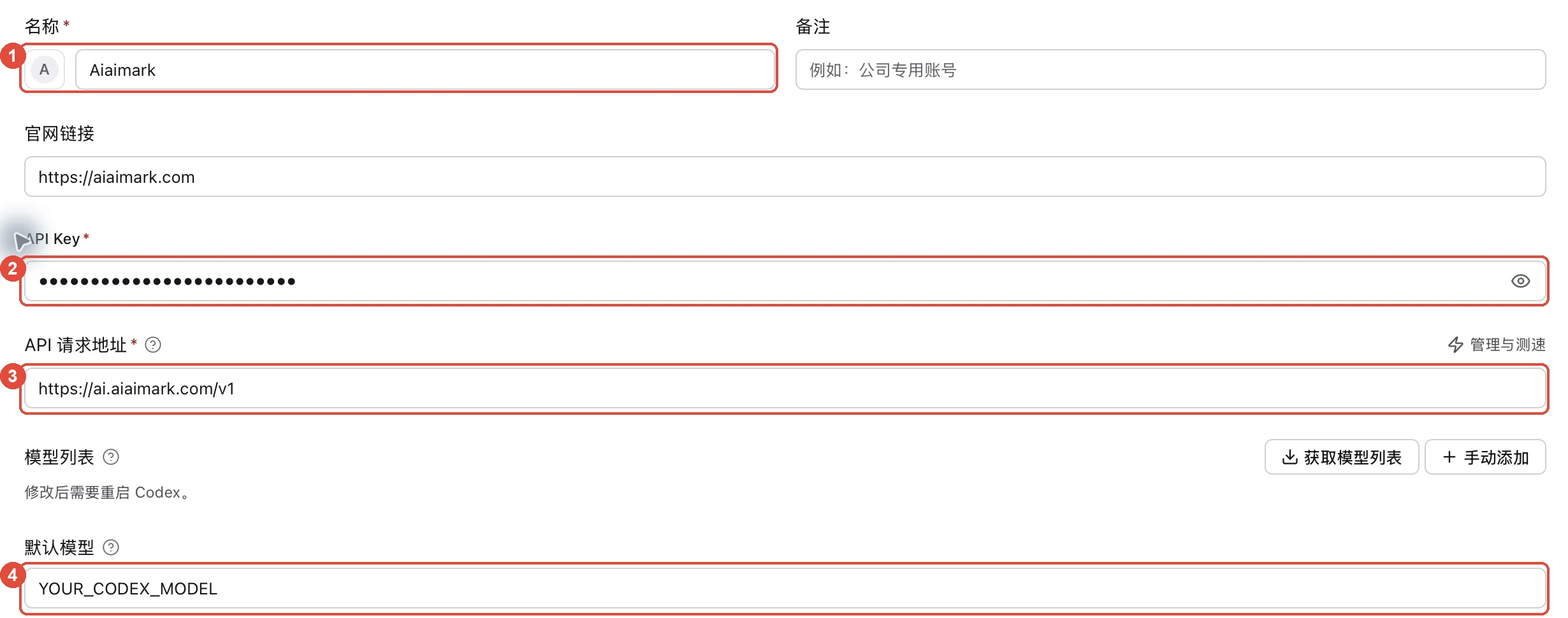
- Provider name
- Aiaimark
- Endpoint / Base URL
https://ai.aiaimark.com/v1- API Key
- The key you created in the Aiaimark console
- Default model
YOUR_CODEX_MODEL(replace with the actual model name)- Upstream format
- Responses (native)
Enter Aiaimark as the name; notes are optional. The Website field is only a shortcut and can contain https://aiaimark.com; it does not replace the API endpoint. Paste your complete console API key into API Key without a Bearer prefix or quotation marks.
Set the API endpoint to https://ai.aiaimark.com/v1. Keep /v1 and do not append /responses or /chat/completions. The auth.json and config.toml editors below update automatically from the form and usually need no manual editing.
- Set the model and API formatClick Add manually under Model list. Enter the exact marketplace name of a model that supports the Responses API and tool use in both Menu display name and Actual request model. YOUR_CODEX_MODEL in the screenshot is only a placeholder.
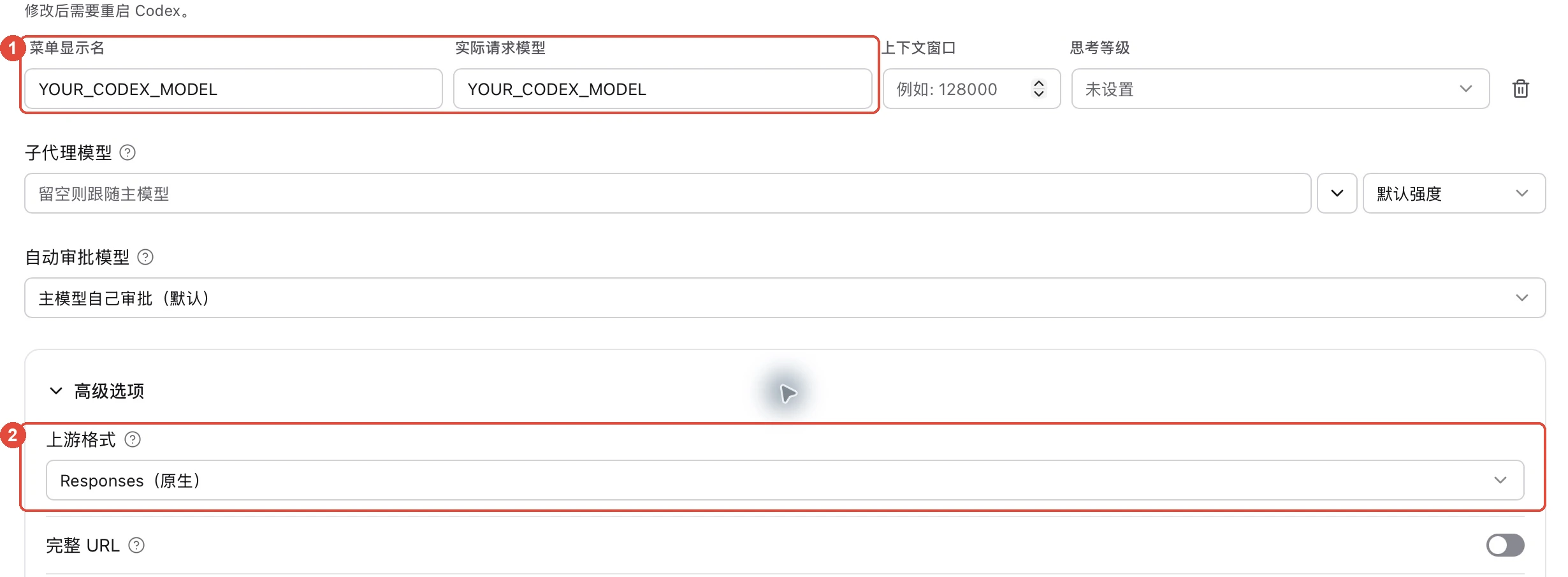
The first row is the default model; the separate Default model field may disappear after adding a model list. Alternatively, click Fetch model list and select a model. If fetching fails, add it manually. Leave context window, reasoning level, and subagent model at their defaults if unsure.
Expand Advanced options, verify that Upstream format is native Responses, and leave Full URL off. A model with native Responses support can connect directly as described here; routing or aggregation is not required.
CC Switch stores your key and writes it to local configuration when you enable a provider. Do not share screenshots or exports containing real keys. Back up any existing manual configuration; if the editor retains env_key from the previous section, remove that field or ensure its environment variable matches the key entered here.
- Save the configuration firstCheck the name, key, endpoint, and model, then click the orange Add button at the bottom right. When editing an existing provider, it may say Save. Return to the list and find your Aiaimark card; use the search in the upper right if needed.

An Aiaimark card in the list only confirms that its configuration was saved. Complete the next step so Codex actually uses it.
- Enable Aiaimark in the provider listOpen the Direct tab for Codex and find Aiaimark. Hover over the plug icon on the right of its card, confirm the tooltip says Switch, and click it. Older versions may show Enable. The pencil icon edits the configuration; it does not enable it.
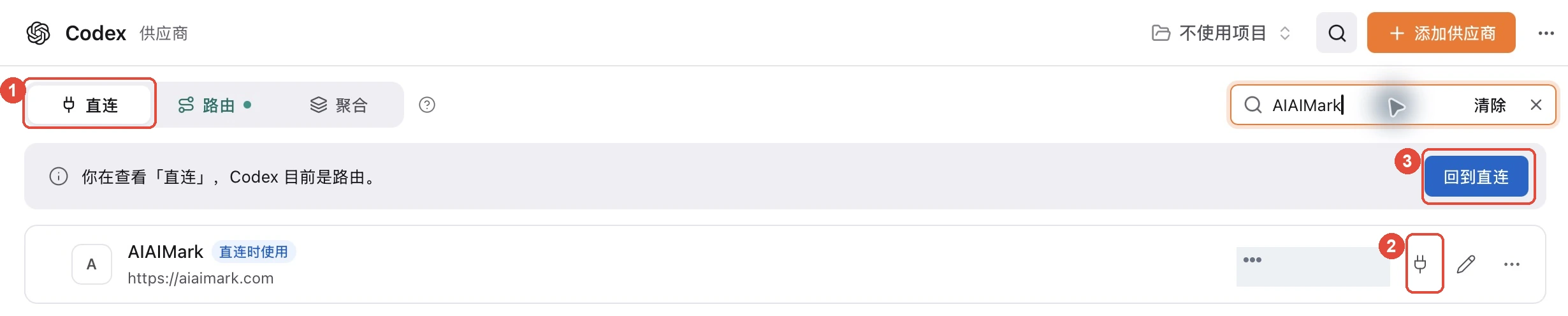
If the notice says you are viewing Direct while Codex is using routing, as in Figure 5, selecting the tab has not changed the active mode. The plug on the Aiaimark card then means Return to direct and use this provider. Click it to change the mode and provider. New users already in Direct mode can skip this detail.
After switching, look for In use or the current-provider indicator on the Aiaimark card. Used in direct mode in Figure 5 refers to the saved direct configuration before routing was enabled; it does not mean Direct mode is currently active.
Already using routing? Check the active provider
If you choose to keep routing enabled, select Route here for Aiaimark in the Routing tab. Figure 6 shows a routing status example: Routing active → AIAIMark at the top and Routing on its card must identify the same provider. Direct-mode users do not need to enable routing to reproduce this screen.

Keep CC Switch running when using routing. In Direct mode, requests go straight to Aiaimark. After changing a provider or model, restart Codex before verifying either mode.
- Restart Codex and verifyChanging configuration does not automatically reload an open Codex session. Restart your client as described below, then test in a new session.
- Codex CLI
- Exit the current Codex process and run codex again in your project directory. Use /model to check the selected model.
- Codex desktop
- Fully quit and reopen the app. On macOS, use ⌘Q; closing the window alone does not quit it. On Windows, use the app’s Quit command.
- IDE extension
- Close and reopen the IDE window, or use Reload Window, then open a new session in the Codex extension.
Send “Hello, please introduce yourself.” Confirm a reply, then check the matching request time and model name in the Aiaimark console. Both must match to verify the connection; a successful latency check or highlighted card is not enough.
- 401 / Authentication failed: check that your API key is complete and valid, and that an environment variable from an older configuration is not overriding it.
- 404 / Model unavailable: check the Base URL and model name, and confirm the model supports the Responses API and tool use.
- Switch not taking effect: confirm you clicked Switch / Enable and restarted Codex. For WSL, custom configuration directories, or multiple Codex environments, verify that CC Switch manages the configuration used by your running environment.
To switch later, select another saved provider, click Switch / Enable, and restart Codex. Choose a previously saved provider to restore its configuration, or select the official OpenAI provider and follow the Codex sign-in prompts to return to official login.